Terminal
The Terminal page embeds a full interactive command-line session right inside the dashboard.
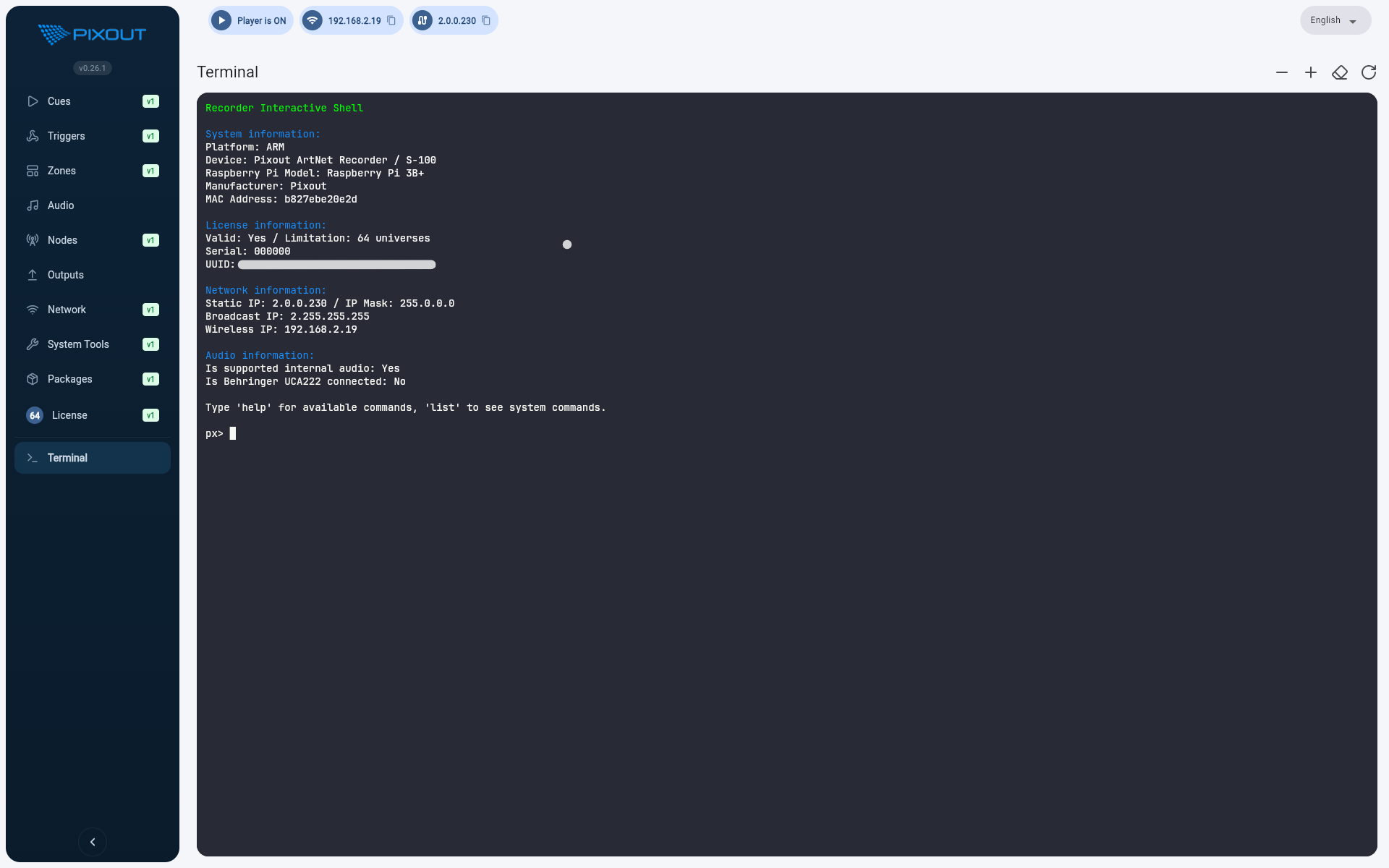
Browser-Based CLI
Open the Terminal from the dashboard sidebar and get an interactive px> prompt. Type commands, see output, and navigate — just like SSH, but in your browser.
The Terminal requires a WebSocket connection. Make sure your browser and network allow WebSocket traffic to the device.
Command Discovery
Type help or list at the prompt to see all available commands, including:
- Command description
- Accepted parameters
- Backend type (D-Bus, REST, or internal)
Built-In Commands
In addition to system commands, the shell supports the following built-in commands:
| Command | Description |
|---|---|
help | Display help information for available commands |
list | List all registered commands with descriptions |
clear | Clear the terminal screen |
exit | Close the terminal session |
Real-Time I/O
Keystrokes are sent to the server over WebSocket, and output streams back to the terminal in real time. There is no polling and no page refreshes — everything happens live.
If the terminal appears unresponsive, check that the WebSocket connection is active. A network interruption will break the session; refresh the page to reconnect.
Auto-Resize
The terminal adapts to your browser window size. Resizing your browser will automatically reflow the terminal content.
Best Practices
- Use
helporlistto discover available commands before running unfamiliar ones - Keep the Terminal tab open during troubleshooting for real-time feedback
- Avoid running destructive commands unless you understand their impact
- Reconnect after network changes by refreshing the page if the session drops