Managing Your Recorder
Access Control Panel
Manage your Recorder's performance with Control Panels. Access Control Panel via any web browser installed on your PC/Mac or mobile device (iOS/Android).
There is an application for mobile devices, enabling easier access to the User Control Panel.
iOS App
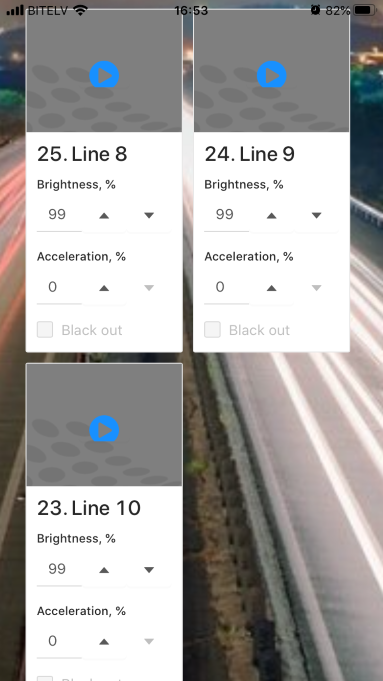
Application gives access to the User Panel via LAN or WAN. On first boot up you will be asked for LID this is the Recorder's ID, you should use it to access your device. There is an option to request your own LID from our Support Team via support@pixoutserver.com. Or use default one:
Default LID: local
Android App
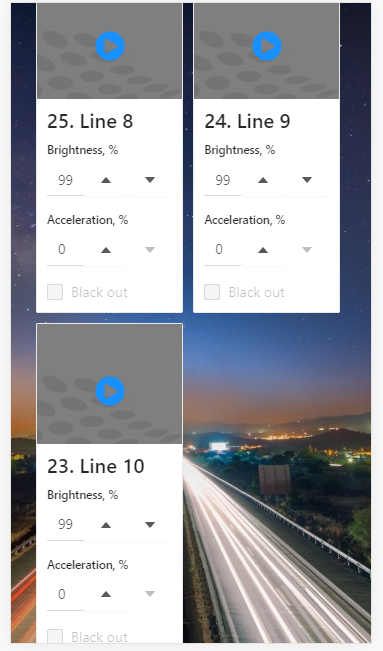
This application gives access to the User Panel from LAN only and there is no need for LID simply connect to the Recorder by predefined address http://pixoutserver.local and start working.
Control Panels Description
There are two types of access:
- User Control Panel
- Admin Control Panel
User Control Panel
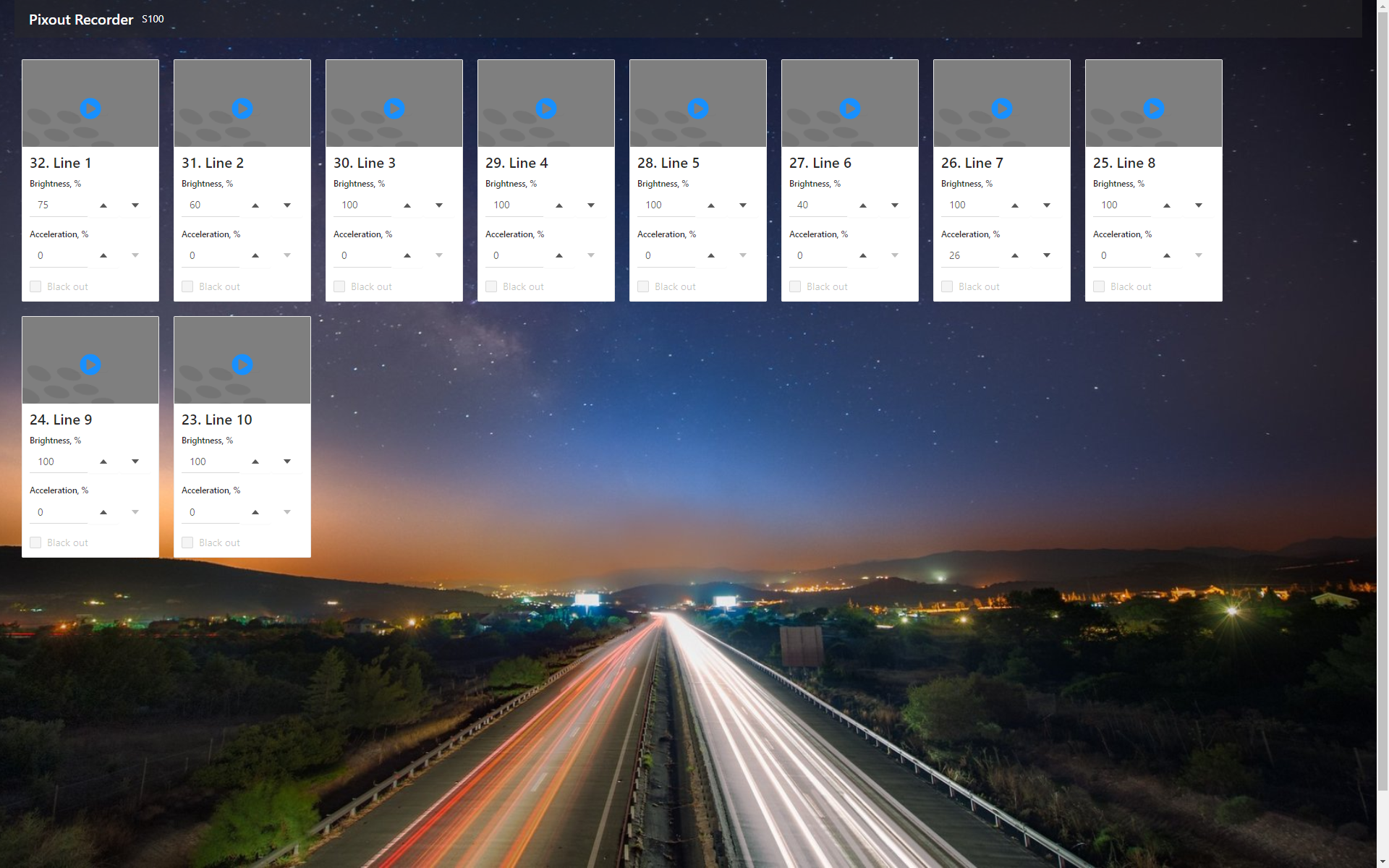
Use the User Control Panel to adjust brightness, speed, choose cue and start/stop playback. The User Panel has an info bar and a list of cues you can manage.
Access URL: http://2.0.0.230 or http://pixoutserver.local
User Control Panel allows to control:
- Brightness level
- Speed level
- Blackout
- Play/stop cue
Handle these processes by clicking corresponding control and adjust playback speed and brightness. Blackout function might be used to decrease brightness to zero level and stop playback immediately.
Admin Control Panel
Admin Control Panel has some features that can affect performance and productivity of the Pixout ArtNet Recorder. You should have an understanding of all working processes and be able to handle errors.
Access URL: http://2.0.0.230/px-admin or http://pixoutserver.local/px-admin
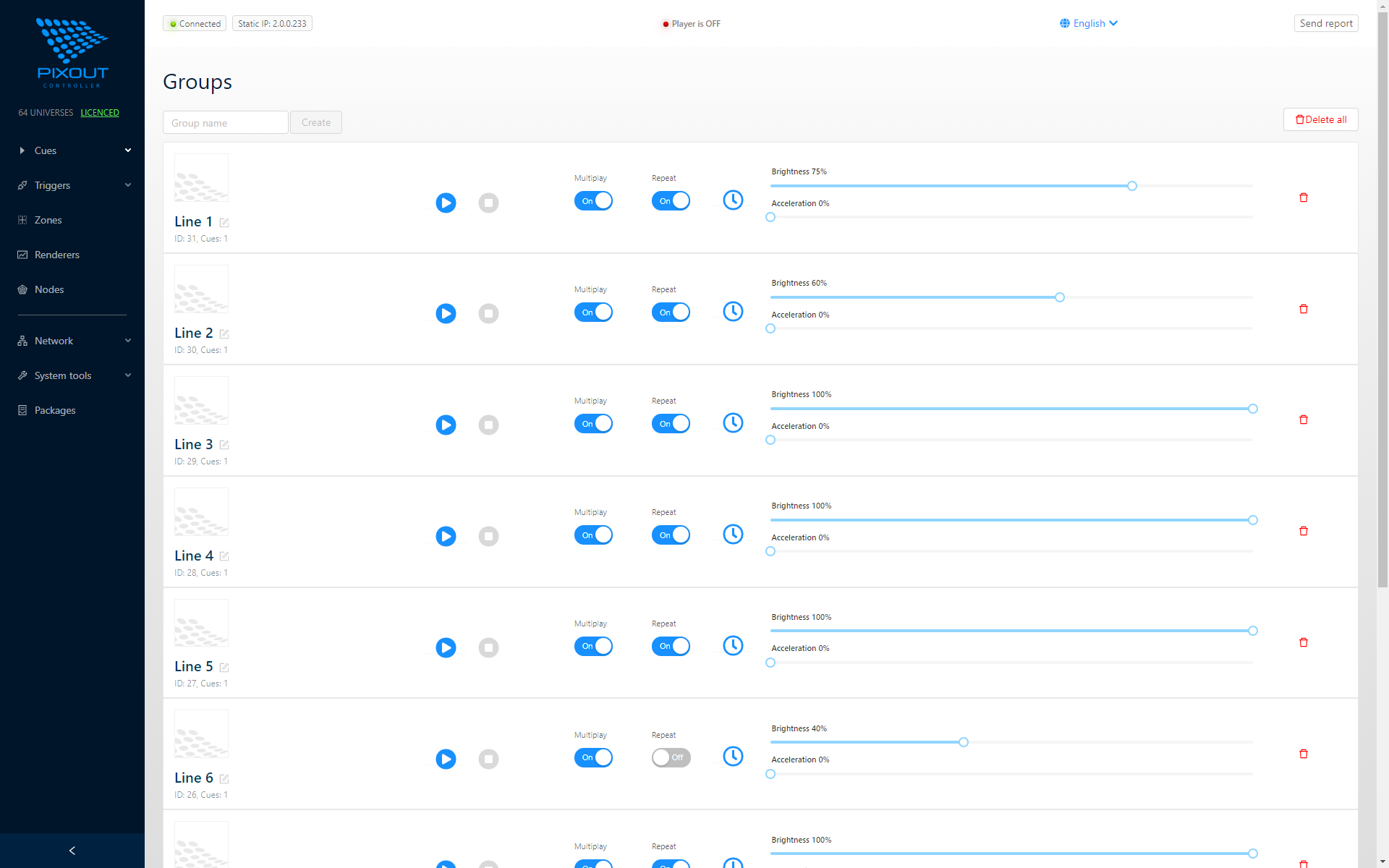
Here you can set up the Recorder, configure network, prepare cue for playback, import/export cues, start/stop cue, check system logs and access other features.
Status Bar
The main screen has a status bar on the top side of the screen.

- Green icon - Player is ON indicates that there are no errors and the cue is playing
- Red icon - Shows that the Recorder stopped/no connection/error and cue is not playing