System Tools
System tools are used to figure out what happens inside the system, restoring factory settings if needed, and also for synchronization.
Time
This section is used to synchronize time on your Pixout Recorder with time on your web browser. Click the Synchronize button and you'll have the same time on both.
Synchronizing is very important for scheduling cues playback.
System Log
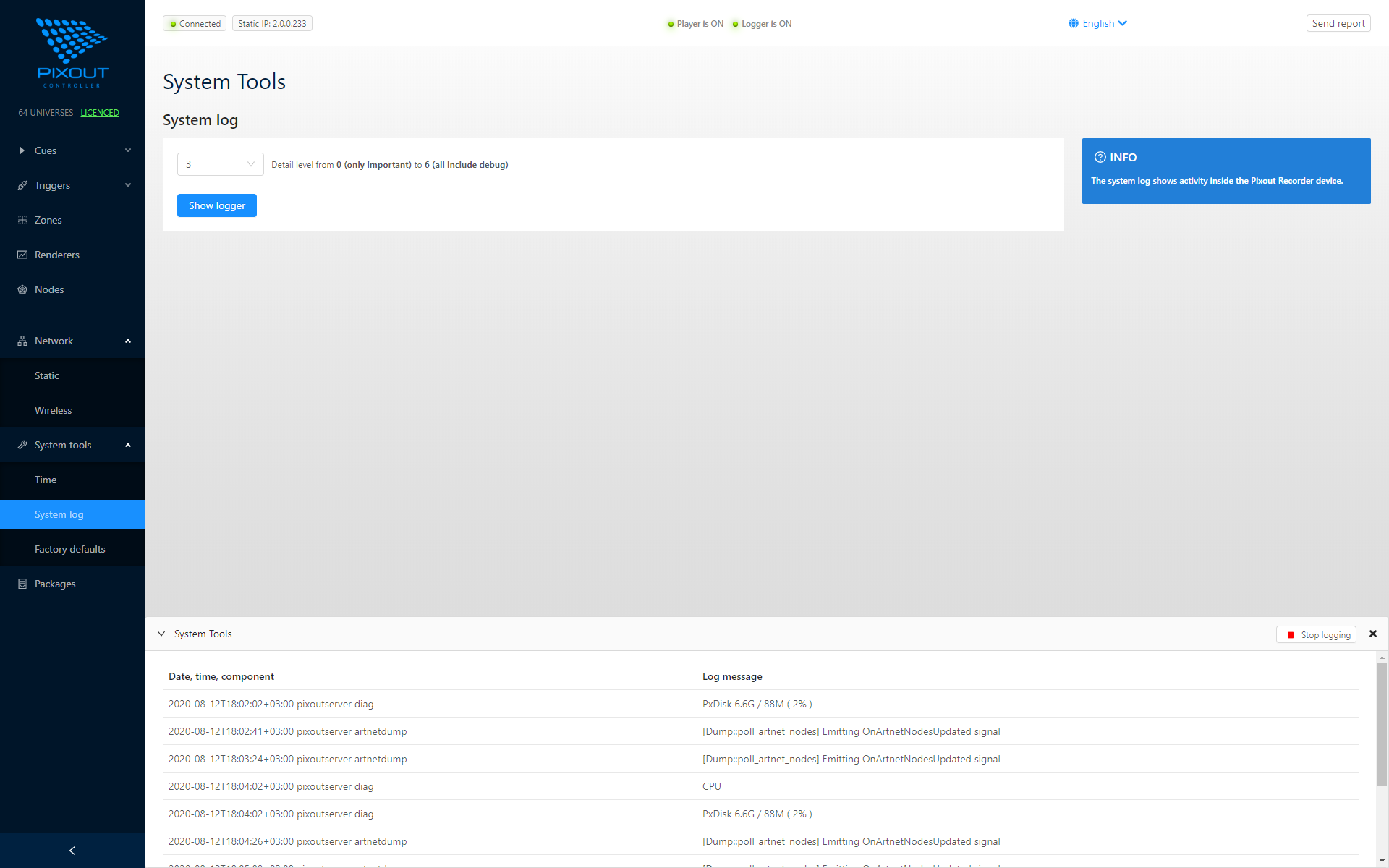
Click the Show button in the System Log tab to get detailed log information from the Recorder. This information can be sent to the Pixout Support Team if needed.
Log window will be visible at all times while browsing pages. You can minimize it (it will keep logging), stop or restart logging by pressing corresponding buttons.
Sending Logs
There are 2 ways to send SystemLog to manufacturers' support. Logs will be sent automatically, if there is an internet connection.
- You can copy SystemLog information and send it via email to support@pixoutserver.com, if you are not connected to the Internet
- Click on Send Report button in the header and send the last 1kB of system data to our Support Team
Restore
If the system has become unstable or the file system was damaged, you can do a full system restore. It will reset the Recorder to the factory settings and restore the damaged file system.
Please be patient, it could take 5 minutes or more.
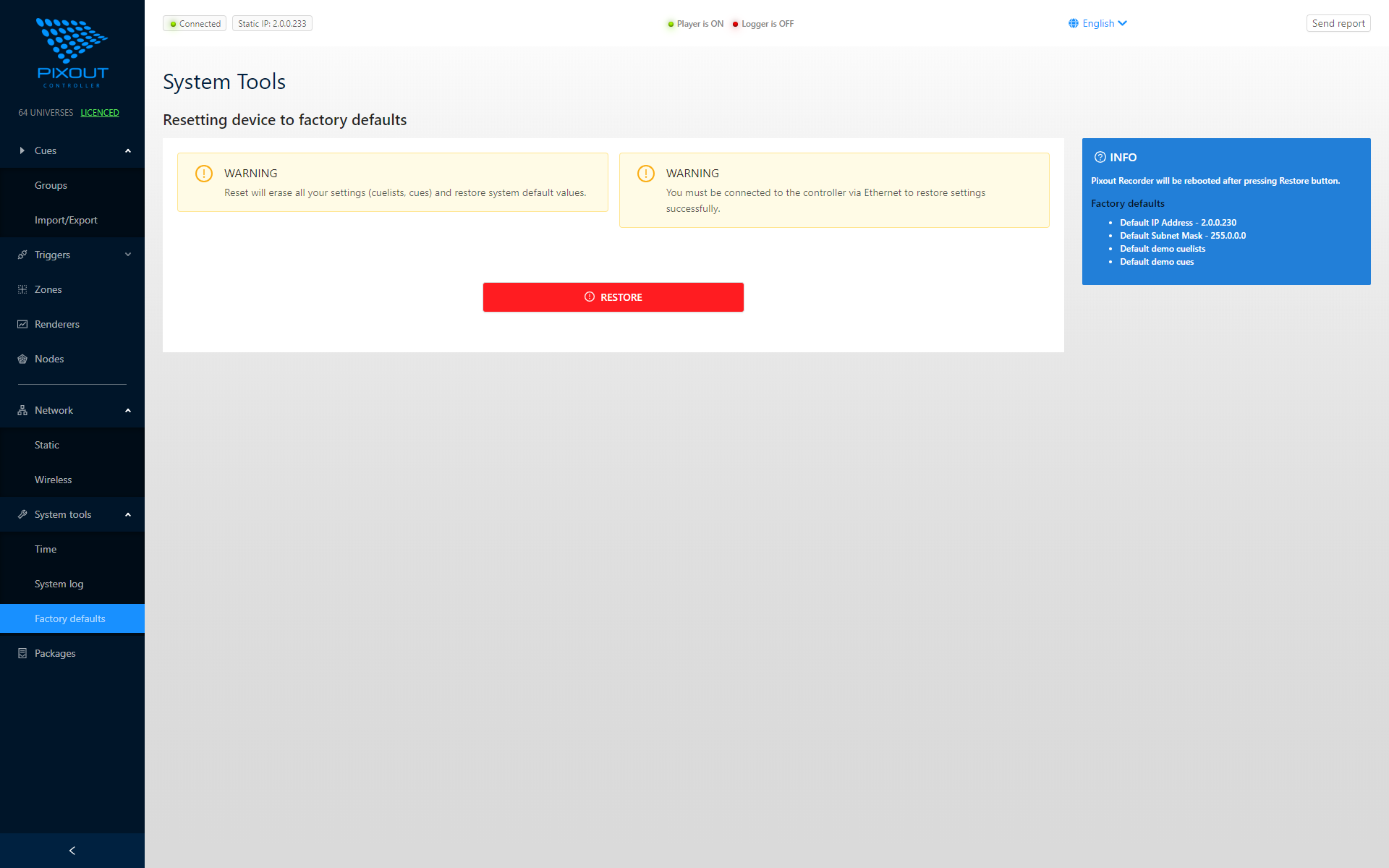
Do not reboot your system until it has finished restoring.