Cues
In this section you can make modifications, import or export cuelists.
Creating a Cuelist
In the Cues > Groups section enter a new cuelist name in an input field and press Create button.
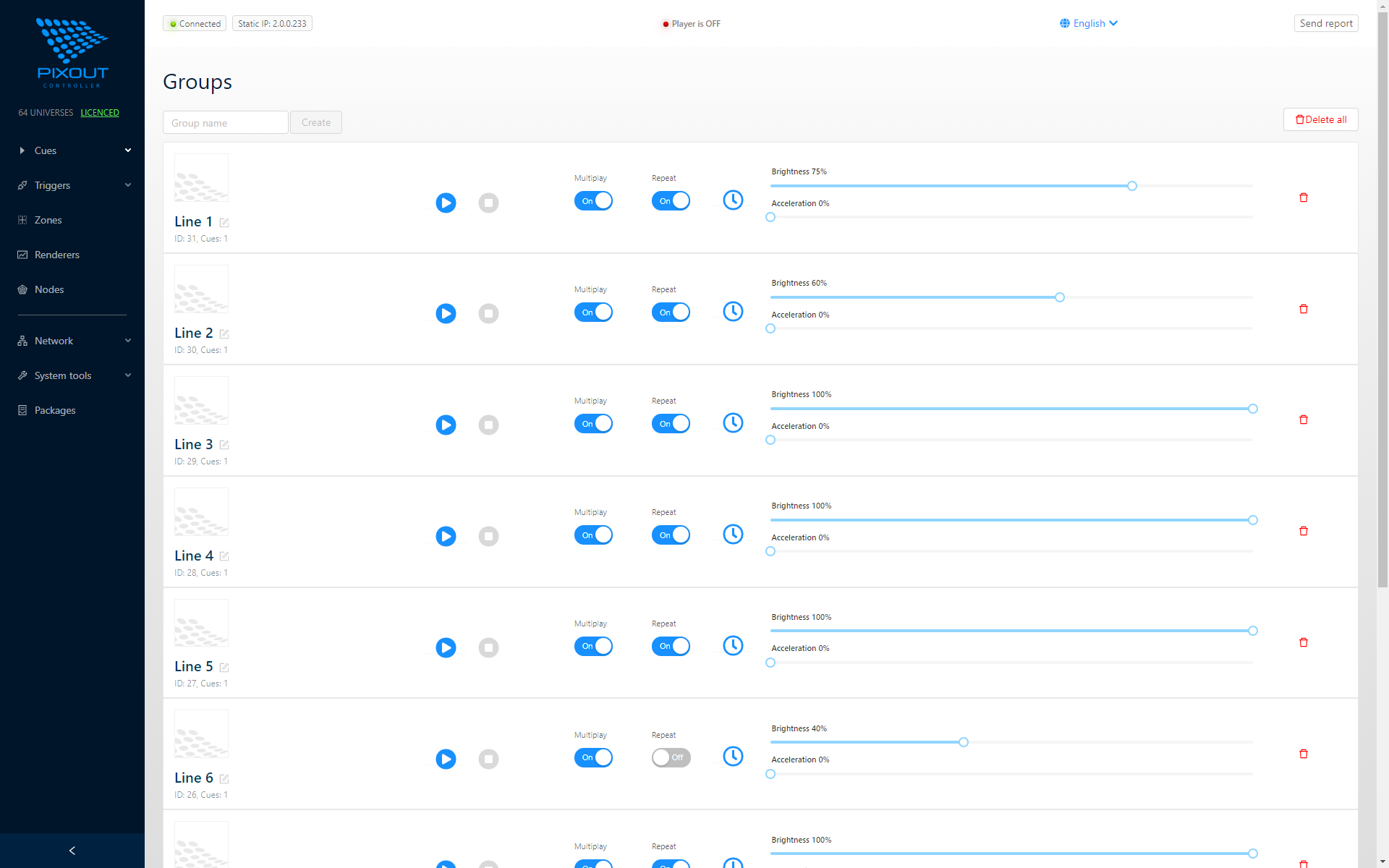
Each cuelist has following options:
| Option | Description |
|---|---|
| Name | Cuelist name |
| ID | How many cues inside |
| Picture | Cuelist thumbnail |
| Play/Stop | Playback control buttons |
| Multi/Single | Work simultaneously with other cuelist(s) or not |
| Repeat | Loop playback or not |
| Scheduler | Time-based scheduling |
| Speed/Brightness | Playback parameters |
| Delete | Remove cuelist |
Cuelist name may be edited afterwards by clicking on the pencil icon.
Recording a Cue
Now you have your own cuelist, but it is still empty. You need to record data from any ArtNet source. Select your Cuelist by clicking on its name or image.
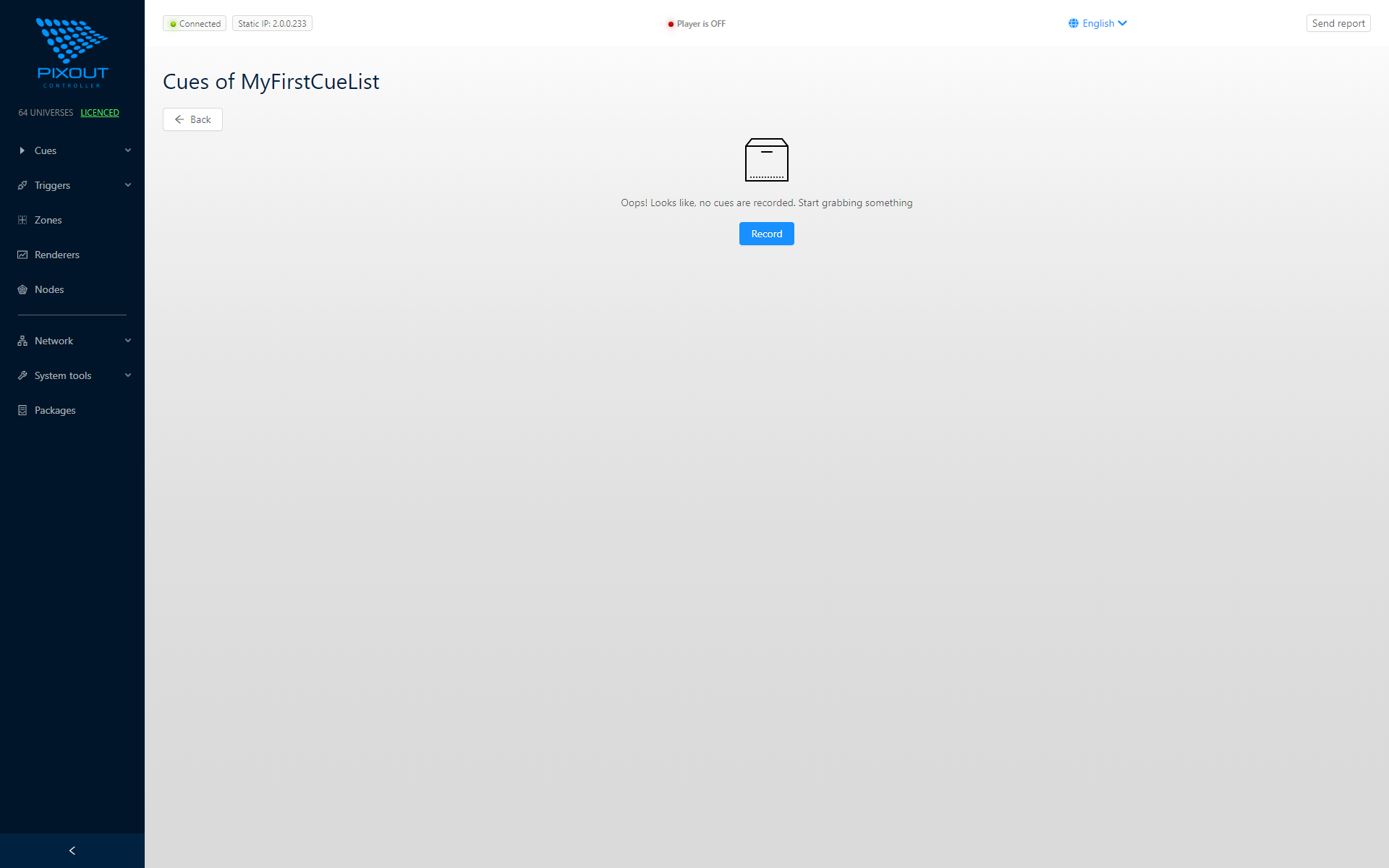
Press Record button to setup new cue. Name your cue, and click the Grab button on the right of your cue. FPS will be grabbed from your source by default.
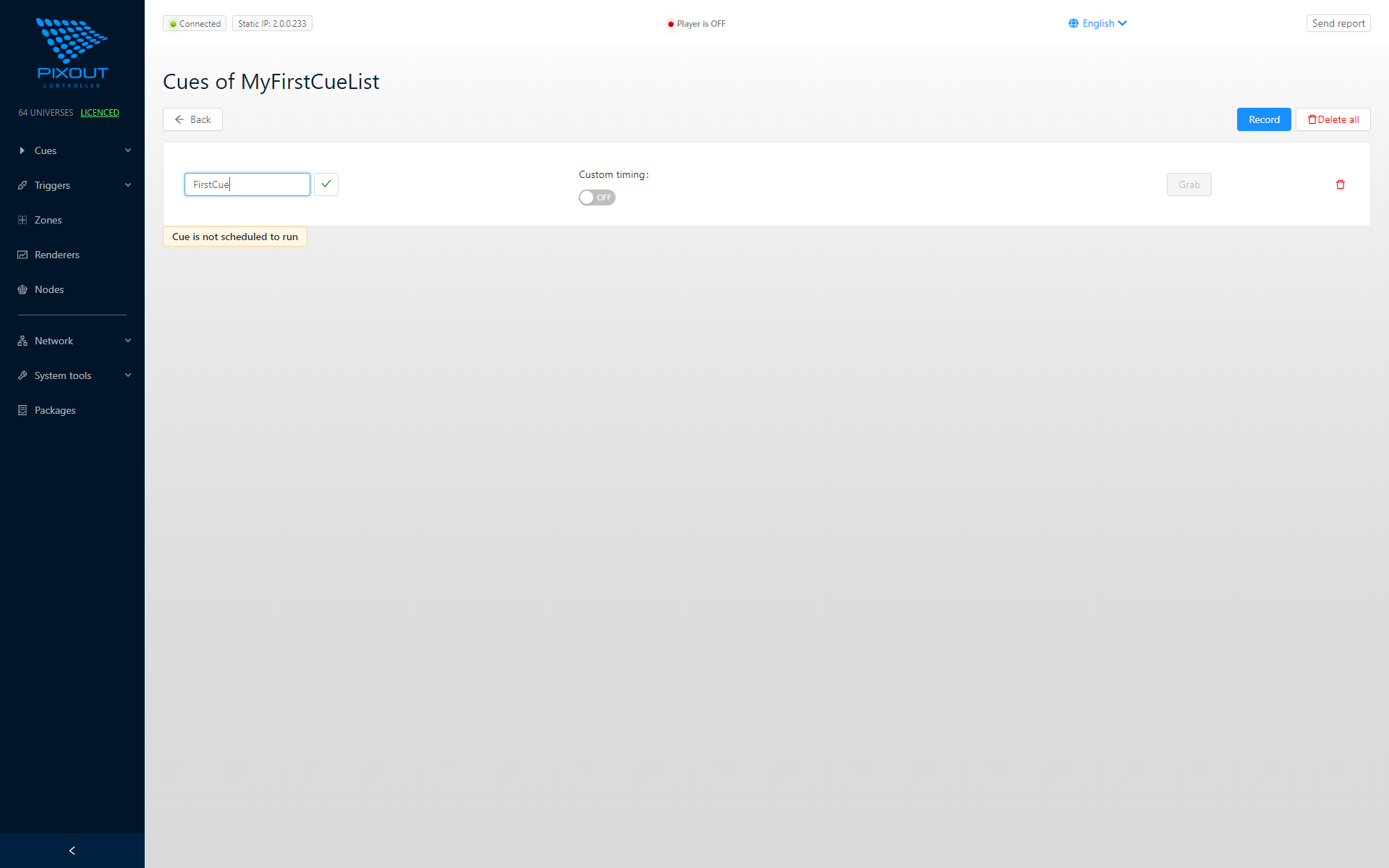
In case you would like to specify custom FPS, please uncheck Custom timings switch and specify FPS. It should be the same as a source provided by the device. PPF is usually equal to universes count.

You can see the "Waiting for data" message after pressing the Grab button, which means that no data received and the Recorder is in a waiting state.
After ArtNet sequences reach the Recorder, you will see a message "Recording in progress"
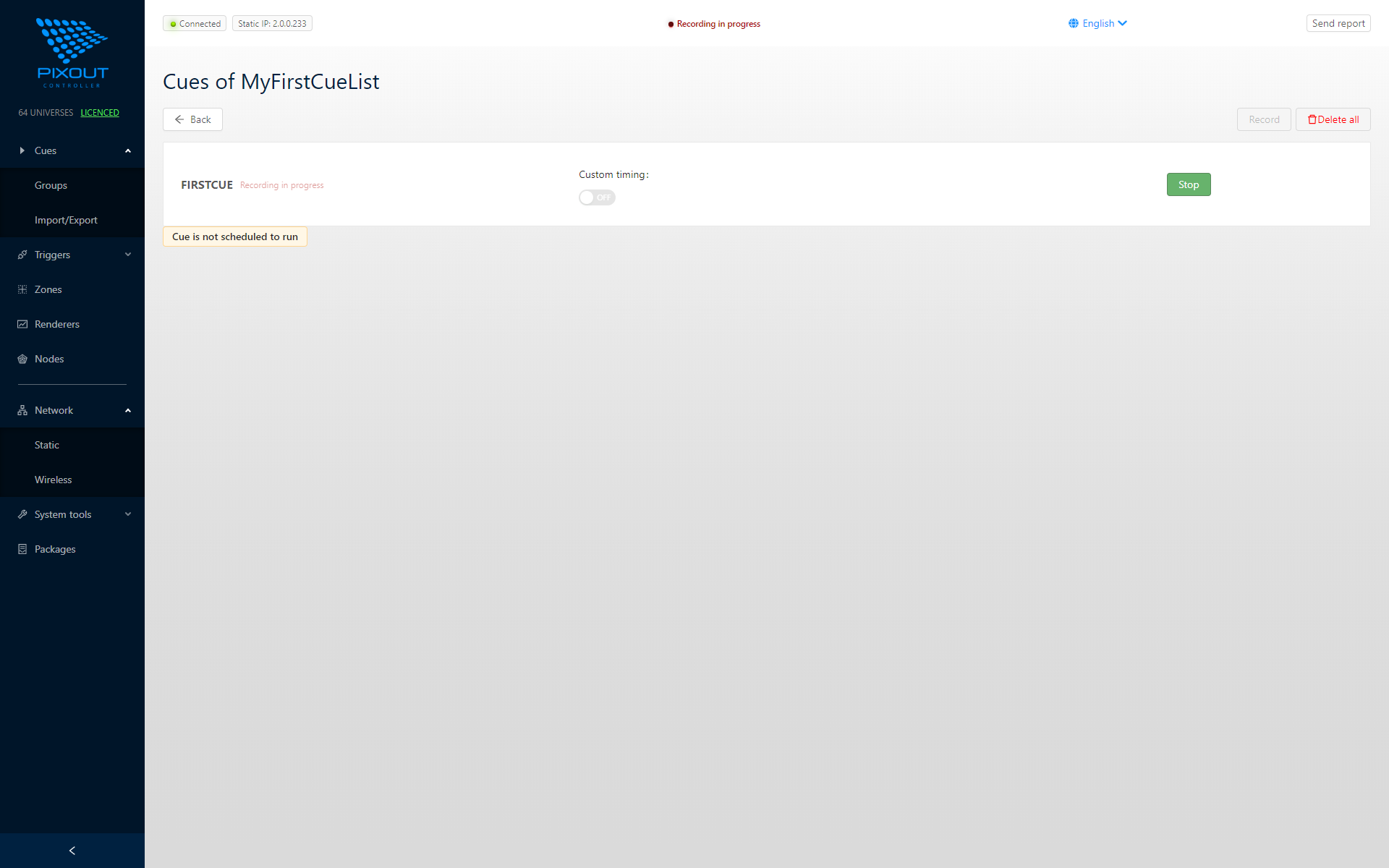
You need to send ArtNet data from your software / hardware to the Recorder by broadcast or unicast address (2.255.255.255 / 2.0.0.230 accordingly) UDP port 6454 or use Auto node discovering.
ArtNet sequences recording may be stopped by clicking the Cancel button. Repeating the previous steps, you can record as many cues as you need.
If ArtNet DMX Triggering is enabled, recording will be started/stopped by triggering events only.
Recording Limits
Total amount of cues and cue lists limited only by SD flash size. The provided SD card has a capacity of 4 / 8 / 16 GB and may be increased in size on demand.
Maximum recorded length for one cue for 64 universes (30fps) is 10 min.
If you need to record a very long cue for more than 10 min, please split it into two or more parts.
Cue or cuelist can be removed with the help of button  delete
Cue Output Filtering
Filter recorded cue output by universe and specify IP for each universe or broadcast.

If you need to filter universes to different IP(s), please follow the syntax below:
Universe:IP:UDPport
| Parameter | Description |
|---|---|
| Universe | Allowed characters [0123456789*]. Universe starting from 0 (e.g. in case of 64 universe first universe will be 0 and last 63). Wildcard character means all universes. |
| IP | Any allowed IP addresses |
| UDPport | ArtNet UDP port (usually 6454) |
Examples
0:2.0.0.100:6454   # Send universe 0x00 to IP
1:2.0.0.101:6454   # Send universe 0x01 to IP
2:2.0.0.102:6454   # Send universe 0x02 to IP
3:2.0.0.103:6454   # Send universe 0x03 to IP
For backward compatibility reasons, universe numbering starts from 0.

Universe Duplication
Universe duplication is allowed. You can send the same universe as many times you like to different IPs.
Please check if IP exists before sending data to it. In case of sending data to non-existing IP, the overall sending process would return an unexpected result.
Example of sending one universe to two different IPs:
0:2.0.0.100:6454   # Send universe 0x00 to IP 2.0.0.100
0:2.0.0.101:6454   # Send the same universe to IP 2.0.0.101
If the filtering box is empty, the Recorder will send universes to address specified by default, depending on your unicast settings. So if you specified two universes out of four, two universes will be unicast and two by default depends on your unicast settings.
Universe / IP / port filtering in cuelist settings will have a universe range starting from 0 (not from 1) if user inputs 1:0.0.0.0:1234 it will mean universe 2 is filtered to IP 0.0.0.0 on UDP port 1234.
Cuelist Import and Export
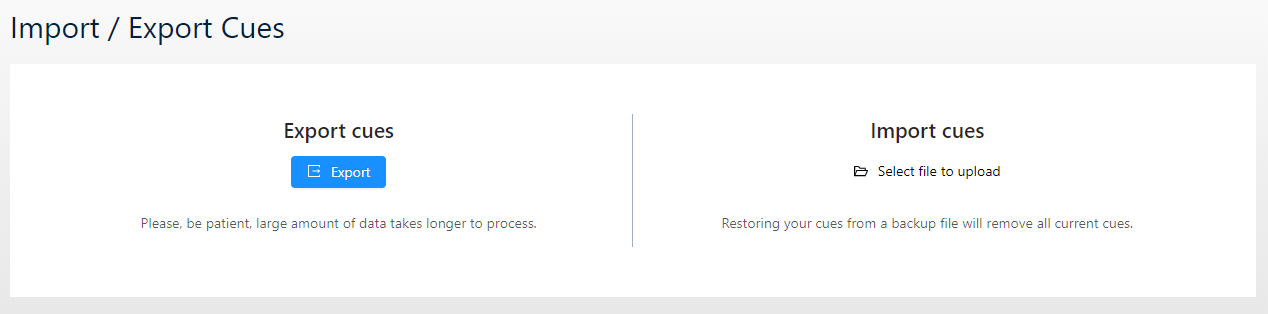
You can import or export your cues onto external device, such a PC, with Import and Export buttons.
If cues are long, for example, longer than 5 min, the process can take some time. Please be patient.