Audio
The Audio page brings full audio file management directly into the dashboard. You can upload, organize, configure, and delete audio tracks without leaving the interface.
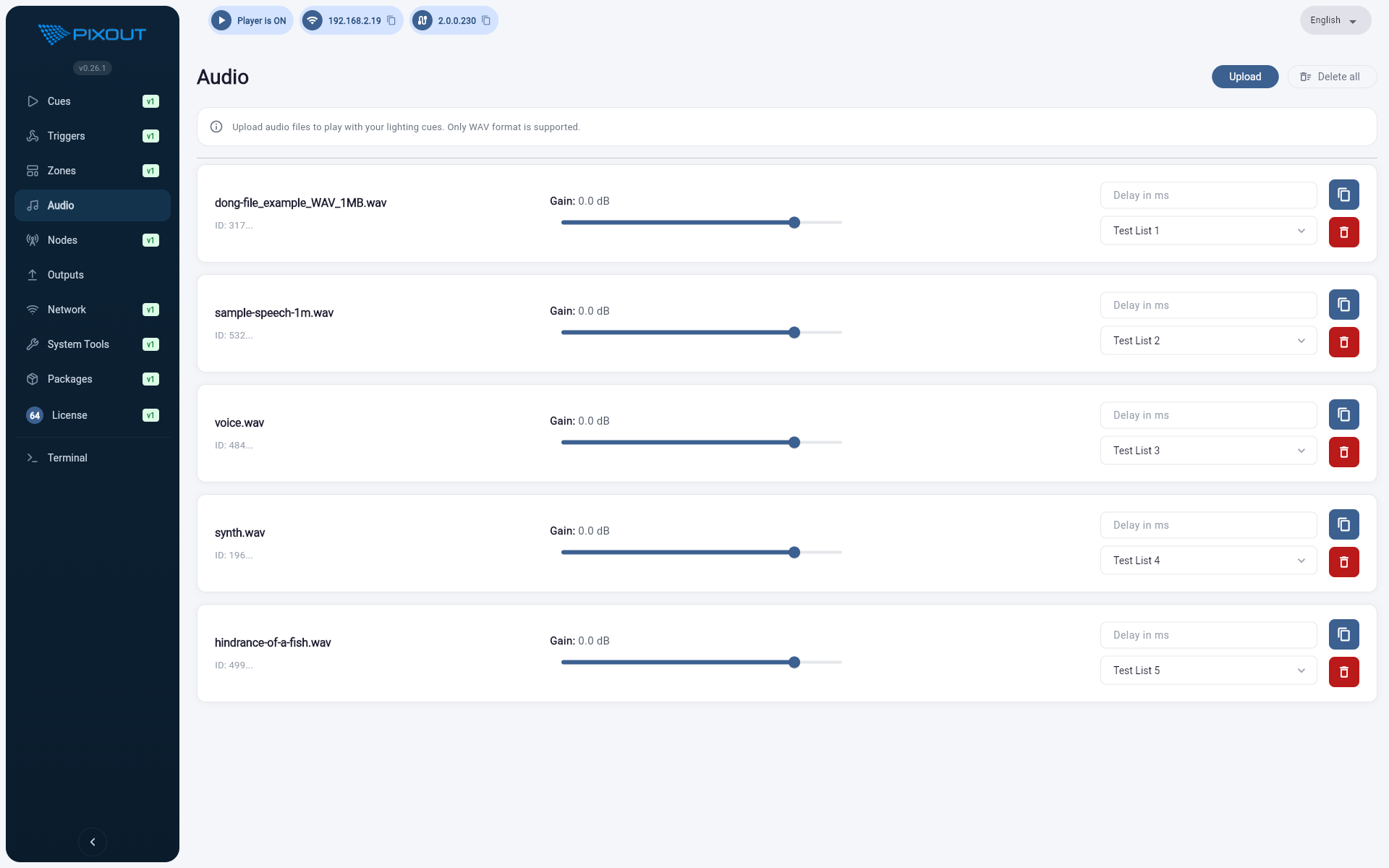
Upload Audio Files
Drag-and-drop or browse to upload WAV files (up to 200 MB each). Multi-file upload is supported with per-file progress tracking. The system validates file type and size before accepting.
Only WAV files are accepted. Each file is checked with libsndfile to confirm it can be decoded. Unsupported formats are flagged in the UI.
Manage the Audio List
Every uploaded track appears as a card showing its name and ID. From each card you can adjust per-track settings:
| Setting | Description |
|---|---|
| Gain | −60 dB to +12 dB via an interactive slider |
| Delay | Milliseconds offset for playback timing |
| Cuelist | Bind a track to a specific cuelist so it starts automatically when that cuelist fires |
Audio Triggering
Each audio track can be linked to a cuelist. When a cuelist starts playing, the linked audio file plays automatically at the same time. This keeps your lighting cues and audio perfectly synchronized without any manual intervention.
To link a track, select a cuelist from the Cuelist dropdown on the track card. To unlink a track, select - Not Linked - from the same dropdown.
Synchronization
Audio and cuelist playback start simultaneously by default. If you need the audio to start slightly before or after the cuelist, use the Delay input box and enter a value in milliseconds. A positive delay postpones the audio; a zero value disable it.
Clone and Delete
- Clone — Duplicate a track with one click to create a copy with the same settings
- Delete — Remove individual tracks from the library
- Delete All — Clears the entire audio library in one action
Delete All cannot be undone. Make sure you have backups of any tracks you want to keep before using this option.
Hardware Detection
The system checks whether audio output is available on the device. Supported hardware includes:
- Internal Raspberry Pi audio
- External USB sound card - Behringer UCA222.
- External USB sound - The SoundWire. It is the go-to USB-C DAC to dual ISO-XLR™ cable interface, reliably streaming 192 kHz, 32-bit audio from your playback directly to the mixing console, bypassing DI boxes and protecting against 48V.
If no audio hardware is found, a clear message tells you what's missing.
If you attach a USB sound card after the system has booted, refresh the Audio page to re-detect available hardware.
Best Practices
- Use lossless WAV files for the best audio quality
- Set gain carefully — start at 0 dB and adjust incrementally to avoid clipping
- Bind tracks to cuelists for hands-free synchronized playback
- Verify hardware detection before deploying to a live event
- Keep backups of important audio files before using Delete All