System Tools
System tools help you monitor, maintain, and troubleshoot your Converter.
Time Synchronization
Synchronize the Converter's clock with your web browser's time. Click Synchronize to set the same time on both devices.
Time synchronization is important for scheduled operations and accurate logging.
System Log
Click Show in the System Log tab to view detailed log information from the Converter.
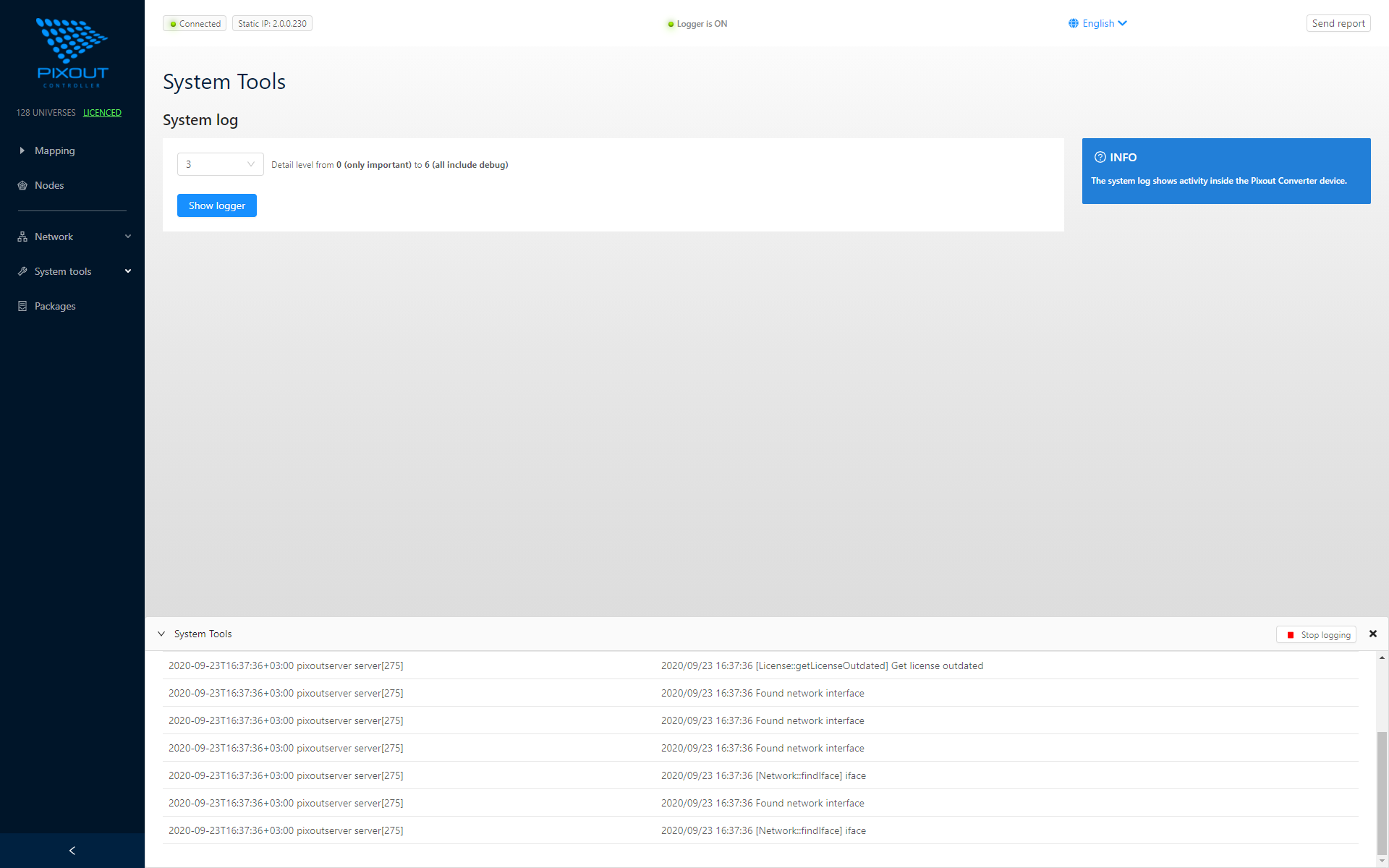
Log Window Features
- Stays visible while browsing other pages
- Can be minimized (continues logging in background)
- Start/Stop logging with corresponding buttons
Sending Logs to Support
There are two ways to send system logs to the Pixout Support Team:
- Automatic - Logs are sent automatically if Internet connection is available
- Manual - Copy log information and email to support@pixoutserver.com
- Quick Send - Click Send Report in the header to send the last 1KB of system data
System Restore
This is a dangerous operation. Do not perform it without a strong reason, especially if the Outgoing IP has been changed.
If the system becomes unstable or the file system is damaged, you can perform a full system restore:
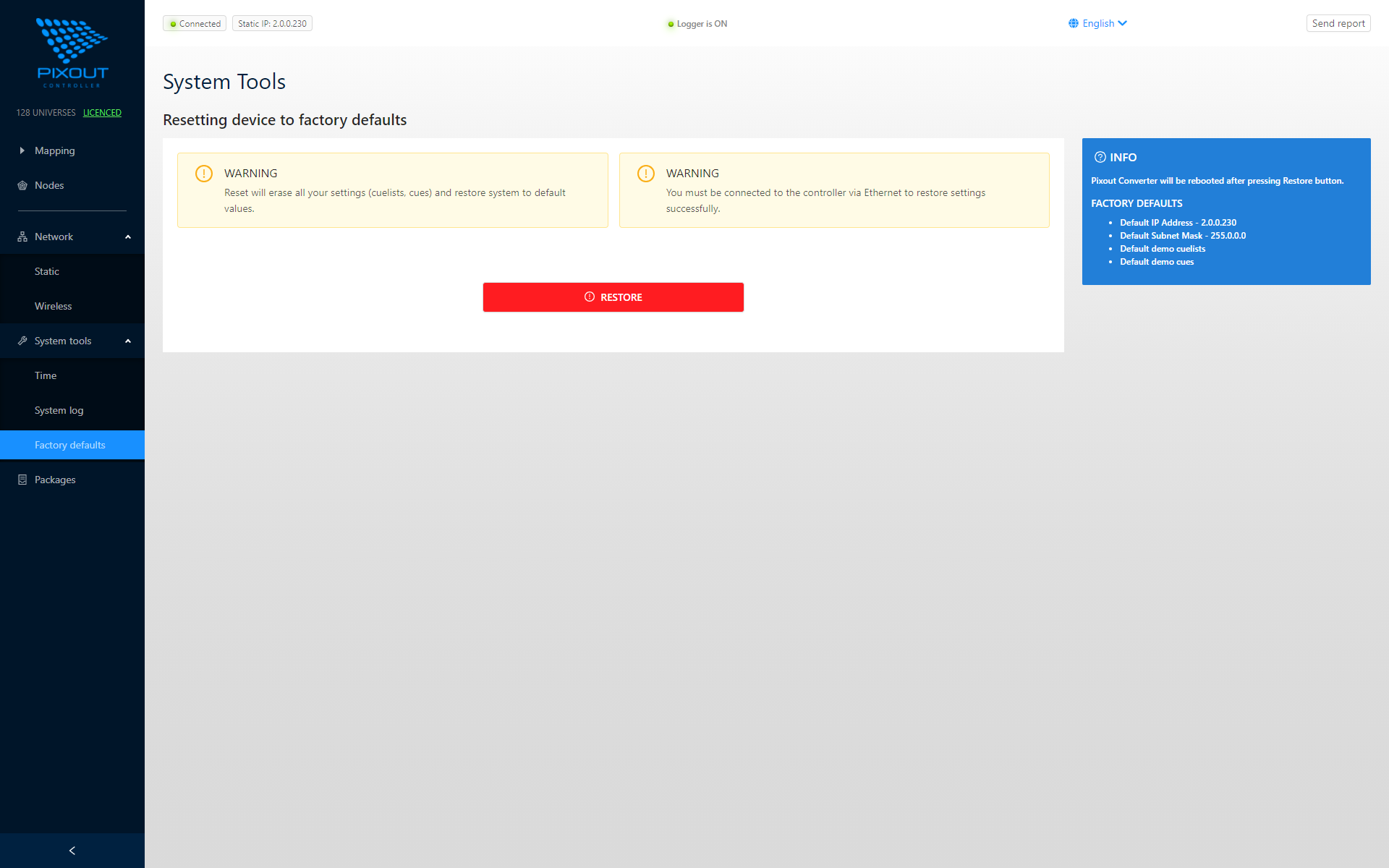
What Restore Does
- Resets the Converter to factory settings
- Repairs damaged file system
- May take 5 minutes or more
Do not reboot your system until restore has finished completely.
Physical Reset Button
A physical reset button is located inside the enclosure. For detailed instructions, contact Pixout Support at support@pixoutserver.com.
Best Practices
- Sync time after initial setup and after any power outage
- Check logs regularly to identify potential issues early
- Backup configurations before performing system restore
- Contact support before attempting restore if you're unsure