Network
Configure your Converter for wireless or direct Ethernet connection access.
Wireless Connection

Wireless connection is used for:
- Sending log information to Pixout servers - Helps Support Team diagnose issues
- Automatic updates - Checks for updates on startup when Internet is available
- Remote access to web panels
Configuration
Enter your router's SSID name and password, and the Converter will connect as a client.
Windows Users
Install Bonjour drivers to support URLs like http://pixoutconverter.local/ in your browser. Download from: pixout.lighting/downloads
Once connected to your WiFi network, access the device via:
| Panel | URL |
|---|---|
| User Panel | http://pixoutconverter.local/ |
| Admin Panel | http://pixoutconverter.local/px-admin |
Security
Use AES encryption on your router to protect your devices.
Ethernet Static IP Configuration
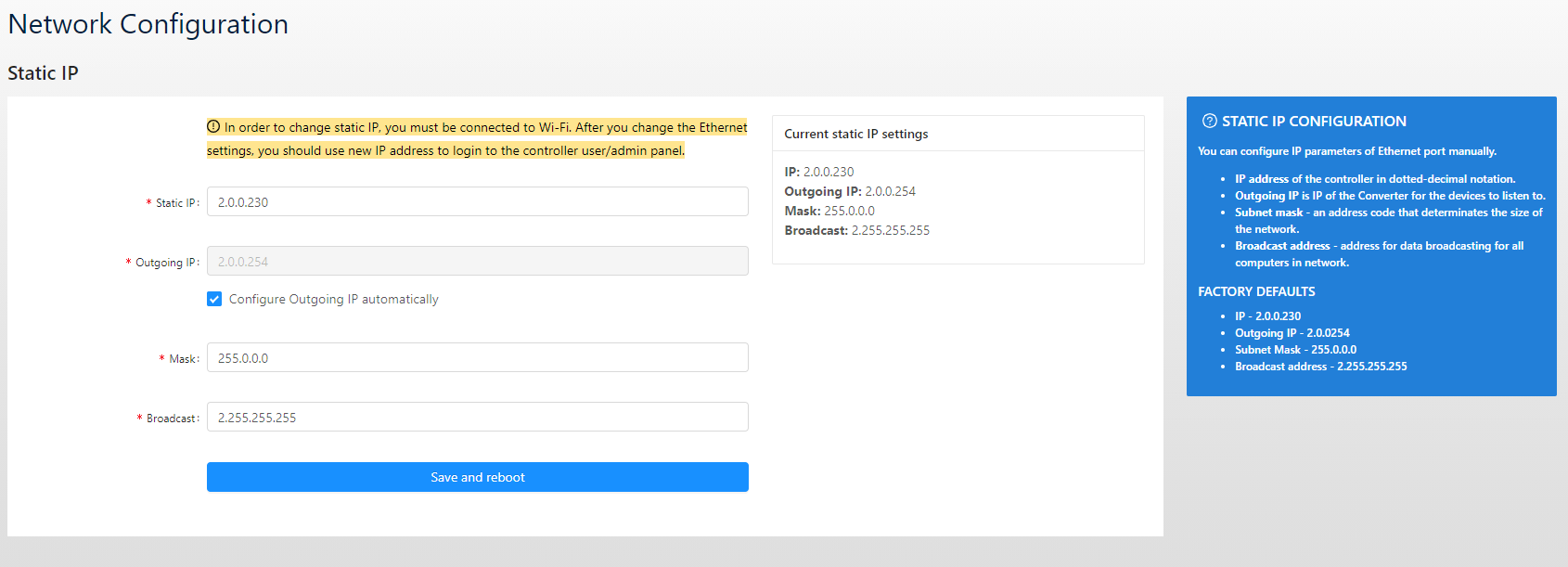
Configure the Ethernet port IP parameters manually:
| Setting | Description |
|---|---|
| Static IP | The Converter's IP address for configuration access |
| Subnet Mask | Defines the network size |
| Broadcast Address | Address for broadcasting to all devices (must match subnet mask) |
| Outgoing IP | IP address for ArtNet data output (auto-updates with Static IP, or set manually) |
Broadcast Address Examples
| Subnet | Broadcast Address |
|---|---|
2.0.0.x / 255.0.0.0 | 2.255.255.255 |
192.168.1.x / 255.255.255.0 | 192.168.1.255 |
10.0.0.x / 255.255.0.0 | 10.0.255.255 |
Important
Before changing the static IP, ensure you have configured a wireless connection. If errors occur, you can still access the Admin Panel via wireless. After changing the Ethernet IP, you must use the new IP address to access the Control Panels.
Network Topology Tips
- Keep the Converter and ArtNet nodes on the same subnet
- Use managed switches for large installations
- Consider VLANs to isolate ArtNet traffic from other network traffic