

Audio and Terminal: Two New Tools for Lighting Integrators
The Pixout admin panel now includes a full Audio management page and a browser-based Terminal — manage synchronized A/V playback and troubleshoot devices without leaving your browser.
We have been quietly working on two additions to the Pixout admin panel that address real pain points we hear about from integrators in the field. Starting with this release, the dashboard ships with a dedicated Audio page and a browser-based Terminal — both designed to save you time on-site and reduce the number of external tools you need to carry around.
Here is what each one does and why it matters for your projects.
Audio Page — Synchronized Lighting and Sound, From One Interface
If you have ever had to juggle a separate audio playback system alongside a lighting controller, you know the overhead that comes with it: separate software, extra hardware, and the constant challenge of keeping audio and lighting cues in sync.
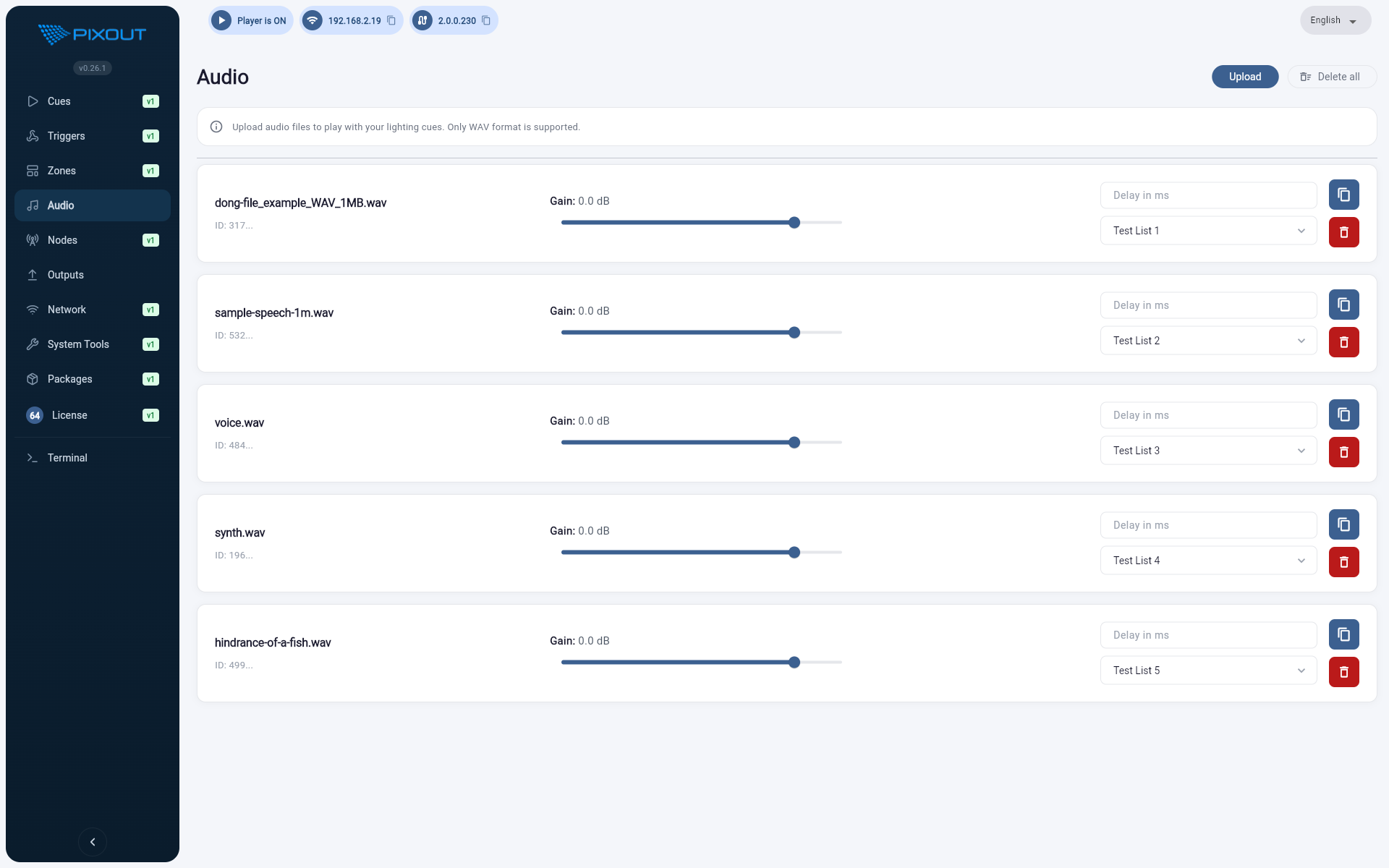
The new Audio page brings WAV file management directly into the Pixout admin panel. Upload your tracks once, configure them from the dashboard, and let the system handle playback automatically.
Cuelist-Linked Playback
The most valuable feature here for integrators is cuelist binding. Each audio track can be linked to a specific cuelist. When that cuelist fires, the audio starts at exactly the same moment — no manual triggering, no external sync signal needed.
This is practical for permanent installations with timed shows, seasonal displays, retail environments with background audio, and any project where you need audio and lighting to move together reliably.
Per-Track Gain and Delay Control
Every track gets its own gain slider (−60 dB to +12 dB) and a millisecond-level delay offset. You can fine-tune the audio level for each cue independently without touching your mixer, and if the audio needs to lead or trail the lighting by a few milliseconds, the delay setting handles that precisely.
File Management
Upload WAV files up to 200 MB each — multi-file upload with per-file progress tracking. The system validates every file using libsndfile before accepting it, so you will know immediately if a file is corrupt or unsupported rather than finding out during a show.
Track cards show name and ID at a glance. Clone a track to reuse its settings across multiple cuelists, or delete individual tracks when a project wraps up. A Delete All option is available when you need to reset the audio library entirely.
Hardware Detection
The Audio page checks for available audio output at runtime and reports it clearly. Supported hardware includes:
- Onboard Raspberry Pi audio
- External USB sound cards (Behringer UCA222)
- High-fidelity USB-C DAC interfaces (SoundWire — 192 kHz, 32-bit, dual ISO-XLR output for direct console feed)
If no audio hardware is detected, the page tells you what is missing. Attach a USB sound card after boot and refresh the page — it will re-detect automatically.
Terminal Page — Full CLI Access From Your Browser
Field troubleshooting often means pulling out a laptop, configuring an SSH client, and hoping the network allows it. The new Terminal page removes that friction entirely.
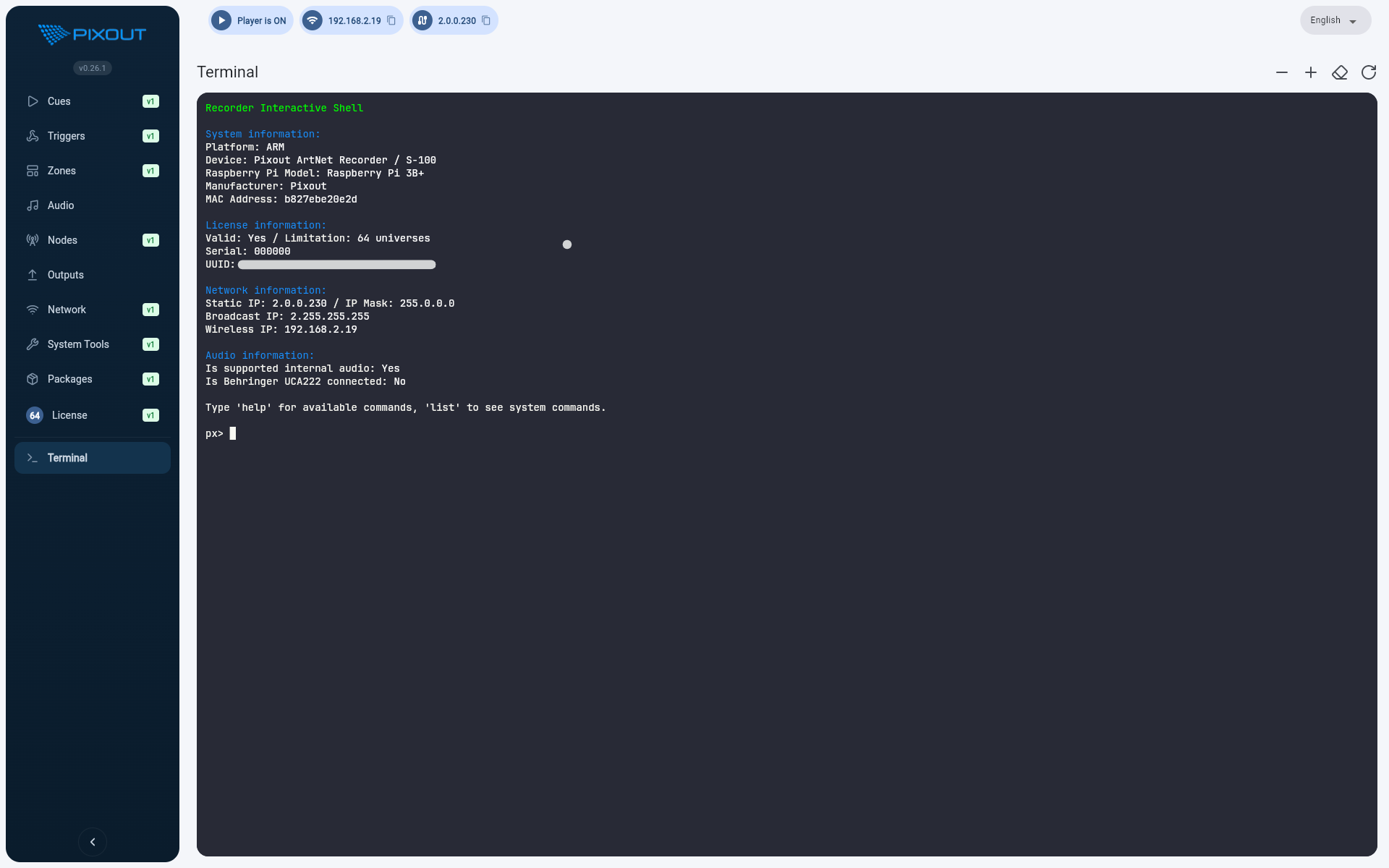
Open the Terminal from the sidebar and you get a live px> prompt — a full interactive command-line session running over WebSocket, right in your browser. Keystrokes go to the device instantly, output streams back in real time. No polling, no page refreshes, no SSH client required.
What You Can Do With It
Type help or list at the prompt to see every available command with its description, accepted parameters, and backend type. This makes the Terminal genuinely useful even if you are not familiar with every command — you can discover what is available on the device you are working with.
Built-in utility commands:
| Command | What it does |
|---|---|
help | Show help for available commands |
list | List all registered commands with descriptions |
clear | Clear the terminal screen |
exit | Close the terminal session |
On-Site Value
For installations with network access to the device, the Terminal means you can:
- Diagnose playback issues without physically accessing the device
- Run system checks during commissioning from a tablet or laptop browser
- Reboot or restart services when something needs a nudge
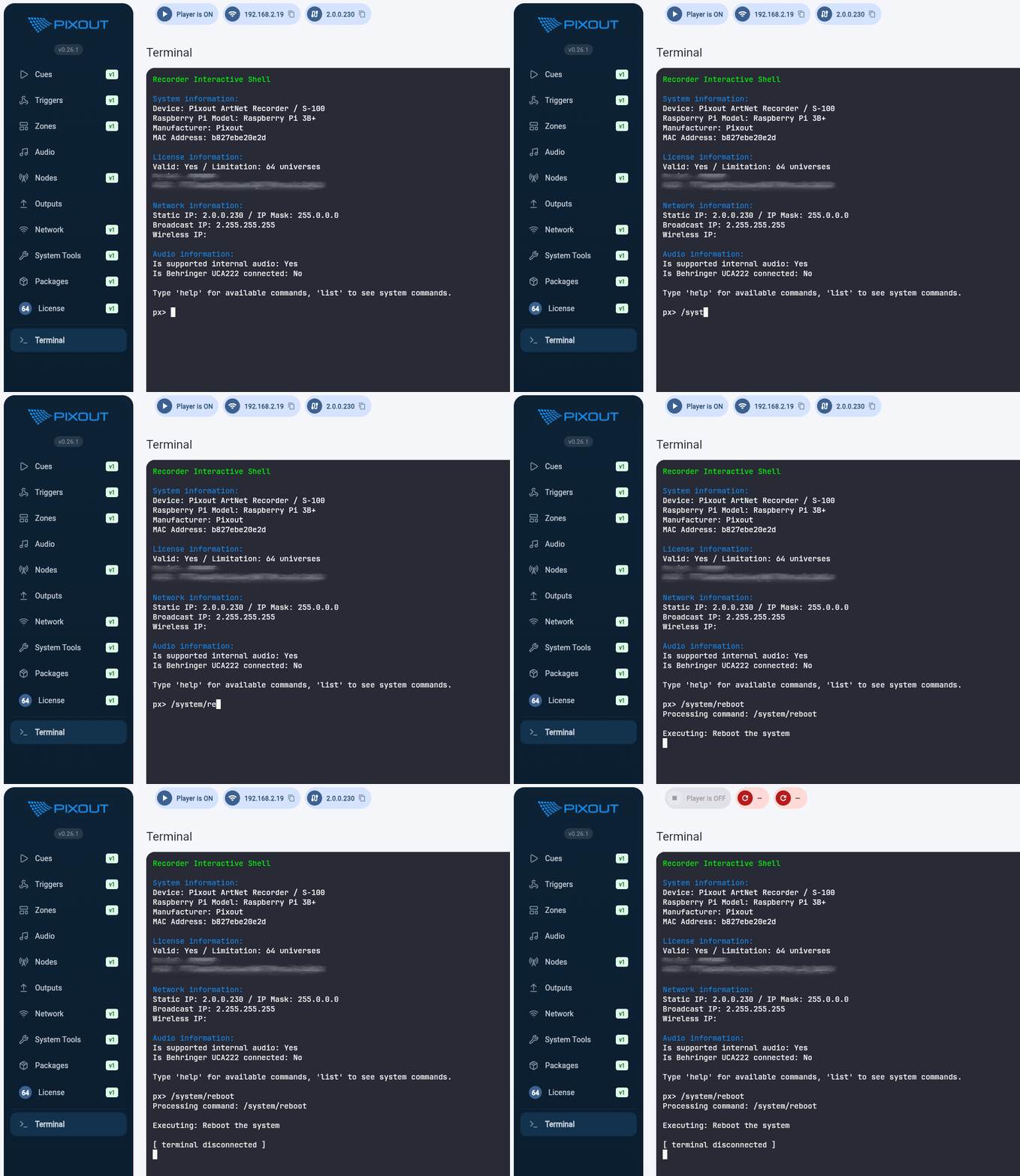
The terminal adapts to your browser window size automatically — resize the window and it reflows cleanly.
Note: The Terminal requires WebSocket connectivity to the device. If the session drops after a network change, a page refresh reconnects it immediately.
Why These Two Features Together
Audio sync and on-device CLI access are both about reducing the gap between what you configure at your desk and what runs reliably in the field. The Audio page gives you one fewer system to manage on every project with a sound component. The Terminal gives you one fewer tool to pack when you head to a site visit.
Both are available now in the Pixout admin panel. As always, update via your standard software update channel.
Questions or feedback? Reach out through the usual support channels — we read everything.
Cheers,
Pixout Team
For additional information, visit: